pour la touche APP il n'y a pas moyen de la reprogrammer ?
 pour la touche APP il n'y a pas moyen de la reprogrammer ?

Code : Tout sélectionner
VCDS CODING:
1) 5F (Infotainment) module, Adaptations, channel: 'Confirmation of installation change'
2) Note your current coding
3) Start Windows calculator and set it to 'Programming mode' and select 'HEX' option
4) Calculation: (current coding) Xor C9D2
5) Change the adaptation channel to the new code (Don't be surprised if it changes back to the original coding, this is normal!)
6) VCDS main screen, 'Auto-Scan'
7) Check for fault codes on all modules and clear the DTCs
Note that VCDS displays your code in 'xx xx' format (small letters and a space character).
You have to remove the space before you calculate your new code.
When you enter your new (calculated) code, insert the space again and use lower cases.
EXAMPLE (don't use these values):
'1a 1a' (original coding of the adaptation channel)
1A1A Xor C9D2 equals D3C8
Enter it as 'd3 c8'
If your original code starts with zero(s) just remove them before calculating (i.e. 0A fb=AFB).
If the new (calculated) code is less than 4 characters, insert zeros in the beginning (i.e. FBB=0f bb).
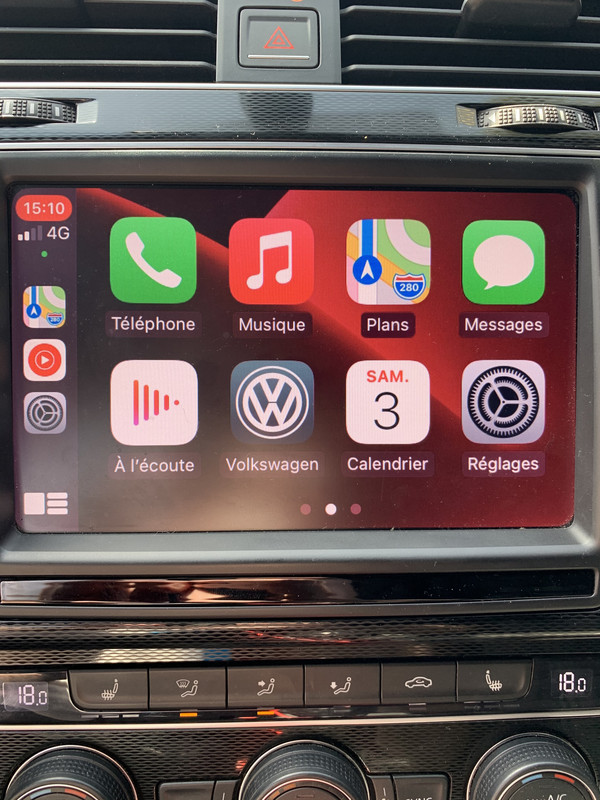
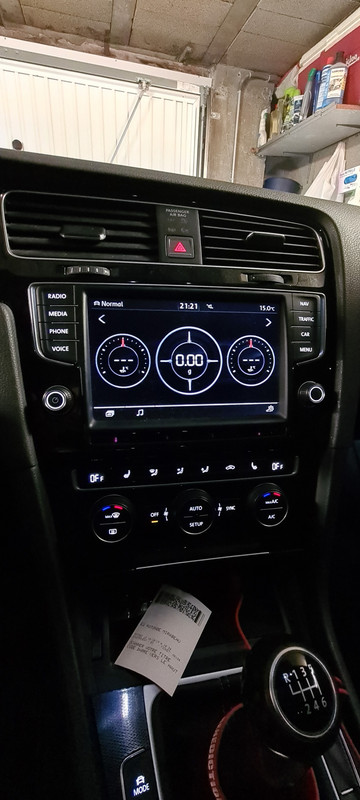
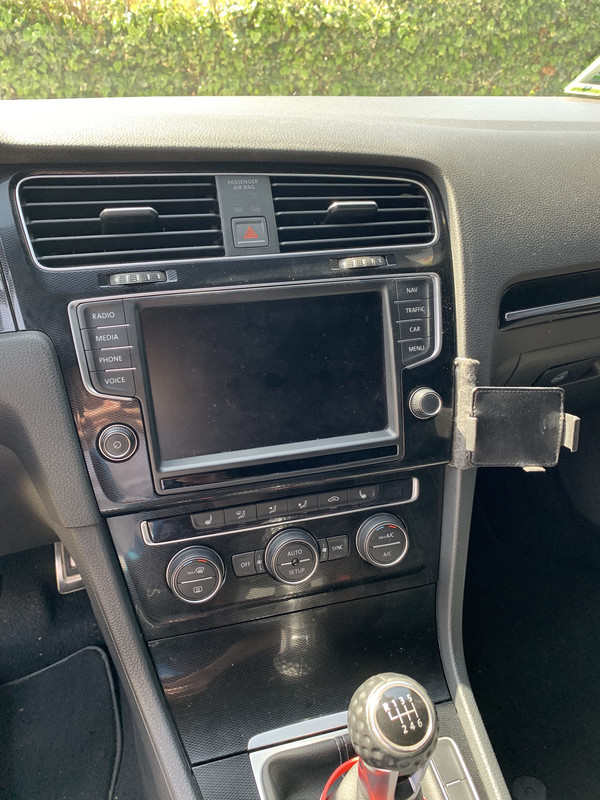


 pour moi c'est quand même un plus au niveau de la vente, elle est d'origine à part l'autoradio qui a été upgradé par la version Pro (modèle VW et non une chinoiserie).

Golf24Carat a écrit : 09 oct. 2020, 19:55
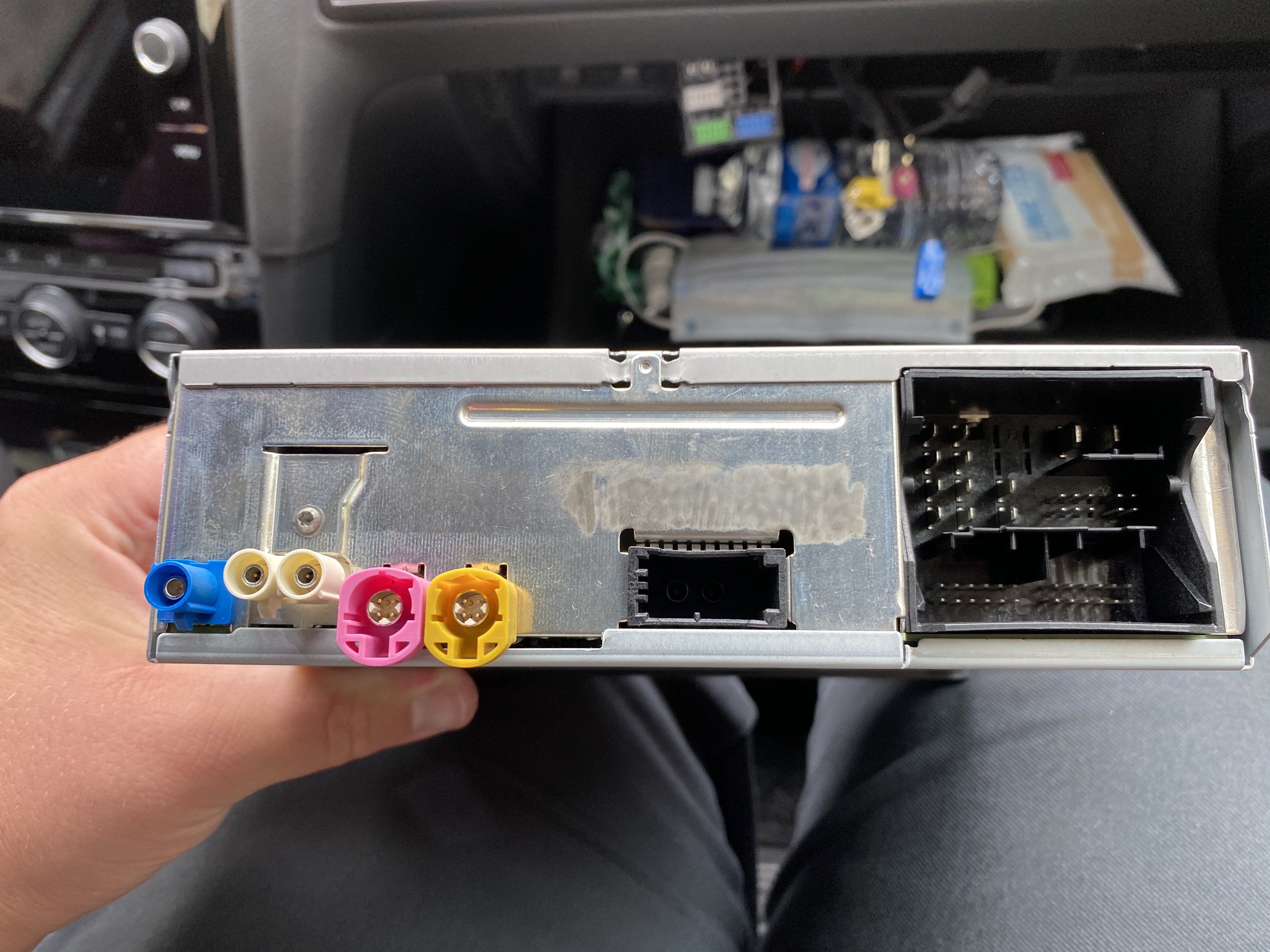
La photo d'un DiscoverMedia v3 (Avec fiche compatible AID)
De gauche à droite
Tout a gauche bleu c'est le connecteur antenne GPS
Les 2 prises blanche: Antenne FM et AM
La prise Rose: écran du Discover
La prise Jaune: vers la prise USB
Le connecteur noir: vers le compteur AID
Le gros connecteur noir tout a droite inclus toutes les autres fonctions données véhicule, haut parleur, alimentation, etc, ...
Parfois il peut y avoir aussi en plus l'antenne radio DAB c'est un petit connecteur rond et noir plus petit que celui du GPS.
DiscoverMedia v3 avec option AID